Settings
Everything you set up once and rarely touch: connected accounts, automations, importing and exporting your data, how the app looks, what alerts you get, and your sign-in. Sections are grouped in the left menu under Connections, Automation, Data, and Preferences.
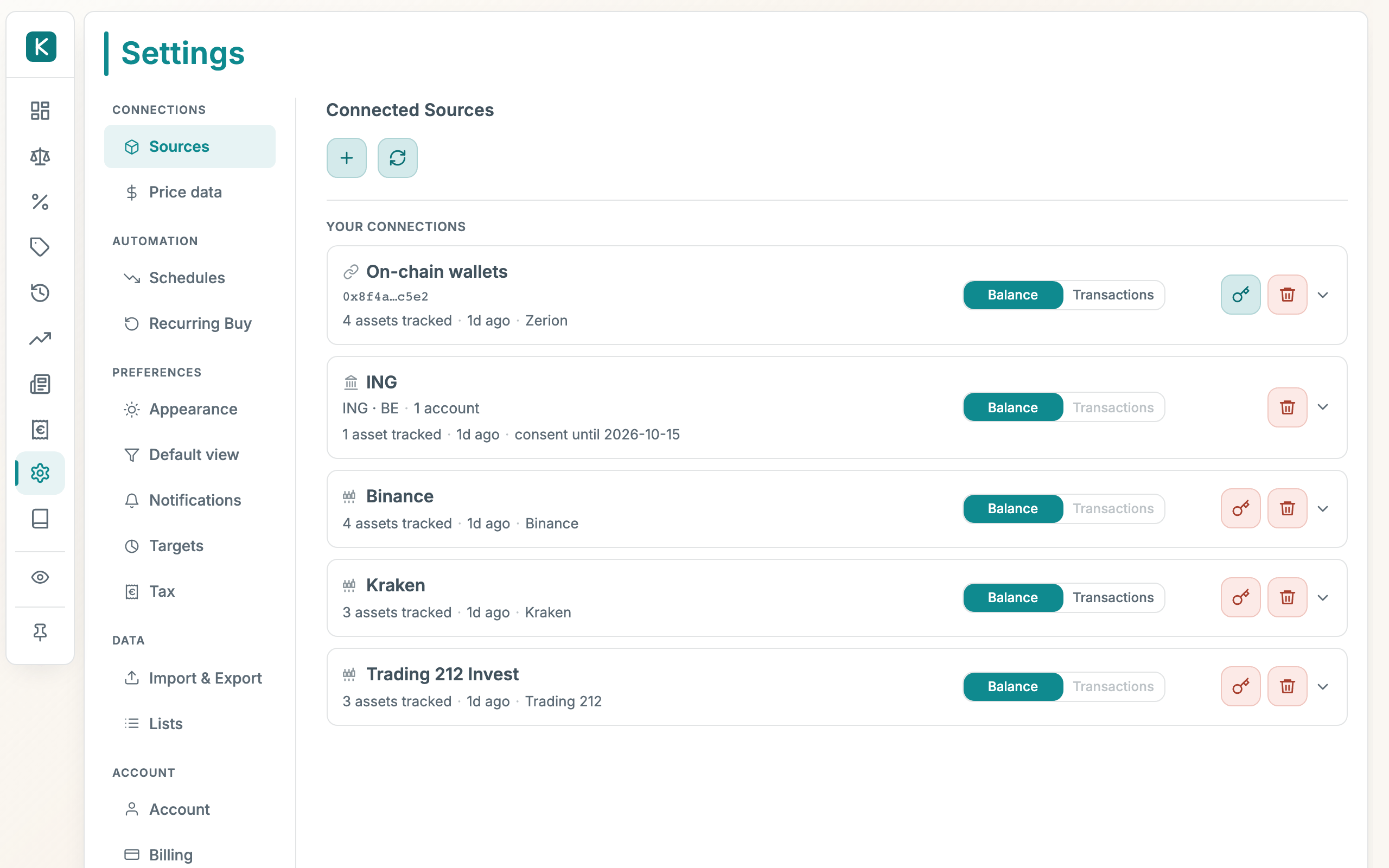
How to use
- Open the Settings tab.
- Pick a section from the menu on the left:
- Sources: connect your wallets, exchanges, and banks, and manage their keys. See API keys and Bank connection setup.
- Schedules: slowly lower a holding's value over time, for things that depreciate like a car.
- Recurring Buy: view and edit your repeating purchases (you create these from the Trade form).
- Import & Export: add holdings from a statement or spreadsheet, backfill net-worth history, download or restore a backup, or load sample data. See Import & Export.
- Lists: edit the Provider, Portfolio, and Category options that show up in dropdowns.
- Appearance: switch between light and dark mode, and turn portfolios on or off.
- Default view: save your current filters as the view you land on each time, and optionally Apply to net worth so only that view counts toward your net-worth total from then on.
- Notifications: choose what updates you get and where (email or Telegram), and set up your Telegram bot. See Update Emails and Telegram bot.
- Targets: set your ideal asset mix. See Allocation targets & rebalancing alerts.
- Billing: manage your subscription.
- Account: see who you're signed in as, and sign out.
- Security: protect your amounts with a passphrase only you know. See Security & Privacy.
- API access: generate tokens that let an external AI agent or script drive this account over HTTP: log trades, record balances, read net worth. Read-only tokens can view data but not change it. Copy a token when it's shown; it can't be retrieved later. See API access.
Good to know
- Renaming a list value updates everywhere it's used. Rename a provider from "Binance" to "Kraken" and every holding using it changes too. You can only delete a value nothing is using; otherwise rename it.
- Delete all data is permanent, and it clears these settings too, including your stored API keys and custom lists. It lives in Import & Export, on the Backup tab under Danger zone, right next to the backup button on purpose. Always download a backup first.
- Dark mode follows your account. Switch it on and it stays on across every device you sign in from.
- Portfolios adds a Portfolio dimension to every holding: separate books for a company, a family member, a fund. With it off, everything files under one personal view.
- Schedules catch up after downtime. They run weekly. If the app was off for a while, the next run applies all the missed weeks at once, so don't be surprised by a sudden drop.
- Create recurring buys from the Trade form, not here. This section only lists and edits them.
- How a price refreshes is set in Prices, not here. See Prices.