Balance Sheet
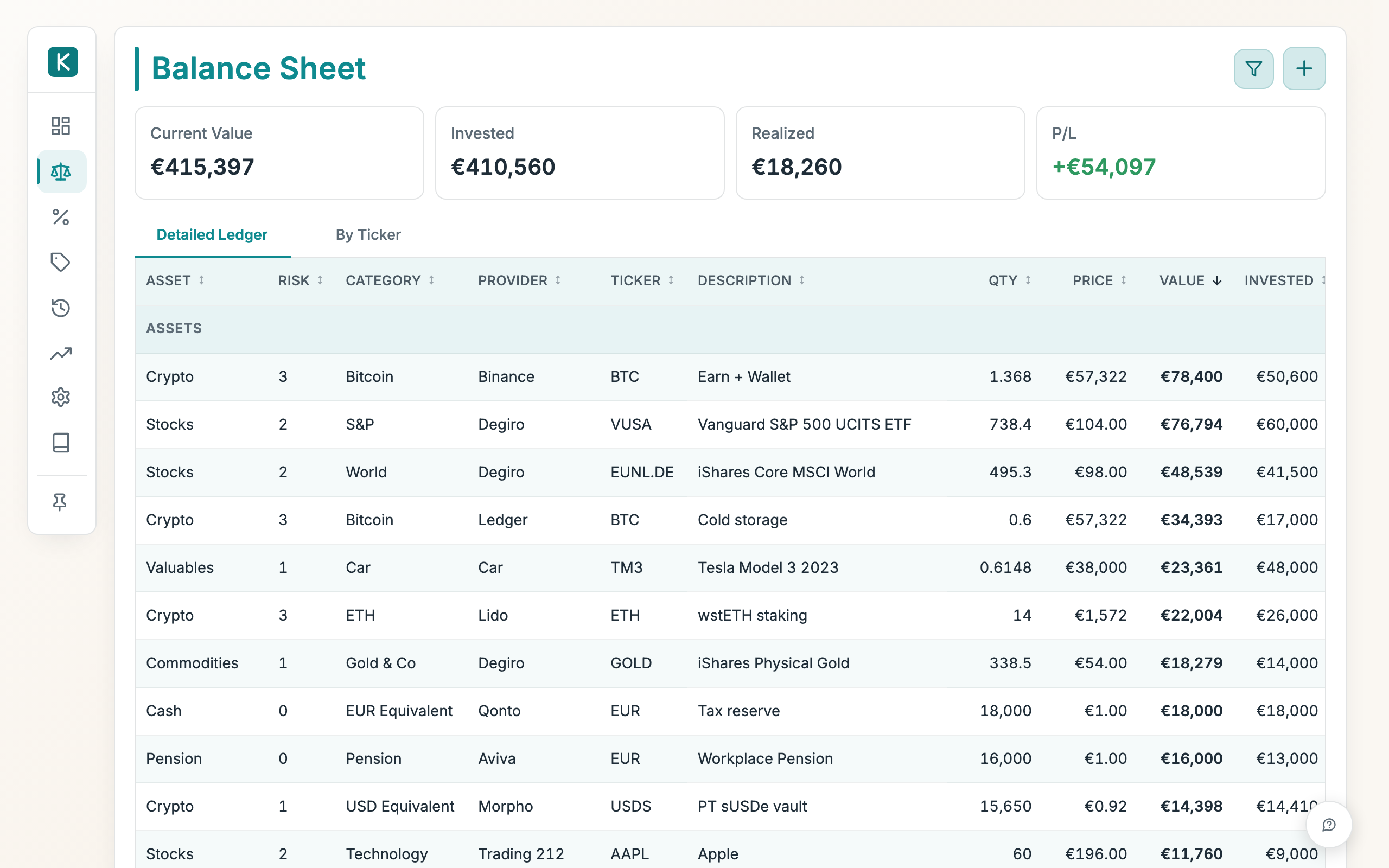
A snapshot of everything you hold right now, with current value, what you invested, realized gains and total profit/loss. View it line by line, or group rows by any dimension, up to two levels deep.
How to use
- Open the Balance Sheet tab to see every holding, line by line.
- Tap the funnel icon to open the filter bar, then narrow by Portfolio, Class, Risk, Category, Provider or Ticker. Leave Hide empty on to skip holdings with no current value. Show all clears every filter; Reset restores your saved default view.
- Use the group icon in the filter bar (or right-click a column header) to group rows by a dimension. Pick a second dimension to nest it inside the first; each group shows its own Invested, Realized, P/L and value subtotal. Groups start collapsed. Click a header (or its chevron) to expand it, or use Expand all / Collapse all in the group menu. Choose No grouping to go back to the flat detailed rows.
- Read the cards above the table, Current Value, Invested, Realized and P/L, which follow your filters.
- Click any column header to sort. Use the Price column menu to switch between your base currency and each holding's preferred currency (the per-holding choice from the Prices page, which defaults to the currency it trades in). The base-currency figures stay correct either way.
- Use the Add (+) menu to record an Add trade or Add holding (including a liability).
- Open a row's ⋮ menu to Edit the line (set a manual quantity or edit its portfolio, ticker, provider, category or description), exclude or include it in P/L, or refresh its quantity or price. Excluding a line from P/L only affects the P/L cards and subtotals. The position stays in the Tax report (the Tax tab has its own exclude).
Good to know
- Click any Qty figure to see how the quantity was built: every ledger event that moved it (the opening position, each trade leg, and every adjustment) in order, with a running total. Trades and openings have an edit shortcut right in the list, so a wrong entry can be fixed on the spot.
- Group by Ticker replaces the old rolled-up view: it gathers each ticker's lines under a subtotal showing combined invested, realized and P/L, while still listing the individual holdings underneath.
- When you hold any liabilities, the table splits into Assets and Liabilities groups, each with its own subtotal, closed by a Net worth line. Grouping nests inside that split.
- Editing a line's quantity logs an adjustment in History without recording a trade. An adjustment's Value (set in its History editor) counts as money in (Invested) or out (Realized). Without it, the line's P/L moves by the units' full value. Rows tagged as income or cost keep their value in P/L, so tag interest drips instead of pricing them. Label edits (portfolio, ticker, provider, category, description) stick until you change them again.
- Holdings in an auto-priced class (Crypto, Stocks, Commodities, Money Market, Cash) take their price from the market, so Invested starts blank. While it is blank, the Add holding form ticks Don't track in P/L for you, which keeps the line out of the P/L cards instead of booking its whole value as a gain the moment a price arrives. Fill in Invested and the box clears itself; tick or untick it yourself and your choice wins from then on.
- A Price Gaps card appears when holdings in view have no current price.